
A Java Edition skin PNG uses the exact same 64x64 layout as a Bedrock classic skin. You can load your Java PNG directly into the Quick 4D Maker, attach 3D parts, and export a Bedrock .mcpack.
How Java skins work in Bedrock
A standard Java Edition player skin is a 64x64 PNG image (either the classic wide-arm layout or the slim-arm layout). Because Bedrock classic skins use the exact same 64x64 UV map, no layout conversion is needed for standard skins. Your Java .png file acts directly as the base texture for your new 4D skin.
In the standard 64x64 layout, the head starts at 0,0, the body at 16,16, the right arm at 40,16, the left arm at 32,48, the right leg at 0,16, and the left leg at 16,48. When you add 3D parts in our tool, your original skin keeps the 0,0 to 64,64 corner while the new part cubes are placed in expanded free space to the right and below.
If you have an older 64x32 legacy Java skin, you do not need to edit it beforehand. The Quick 4D Maker automatically upgrades 64x32 images to 64x64 on load. Note that the official documentation states that 24-bit PNG files without an alpha channel are not accepted as valid custom skins, so your file should be a 32-bit RGBA PNG.
Turn your Java PNG into a 4D skin pack
You can build a 4D pack around your Java skin in your browser using the Quick 4D Maker. Nothing is uploaded to a server, and your work is autosaved in your browser.
- Save your Java Edition skin as a
.pngfile on your phone or computer so you can easily find it. - Open the Quick 4D Maker and stay on the Skin tab.
- Select Choose skin image and pick your Java
.pngfile (or drag-and-drop it, or use Paste image). You will see your skin wrapped onto the 3D character in the live preview. - Check the Arm model setting under the image loader. The tool automatically picks Classic arms (4 px) or Slim arms (3 px) by checking the transparent pixels in your skin's arm area. If the arms look stretched or have black lines in the preview, switch the option manually.
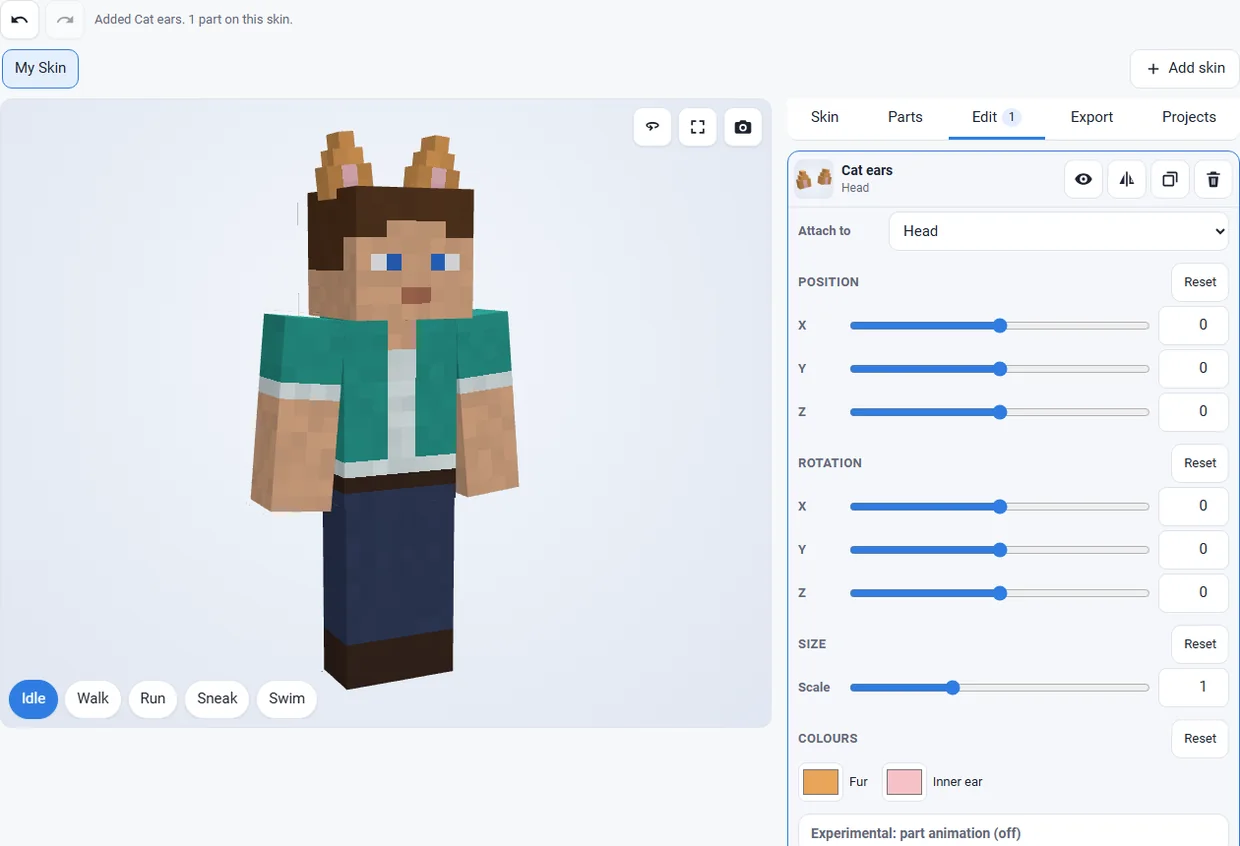
- Switch to the Parts tab and browse or search the categories (such as ears, tails, wings, horns, head, face, body, or hair). Tap any part to attach it to your character.
- Open the Edit tab to adjust each added part. Each part has a card where you can change its Attach to bone (
head,body,leftArm,rightArm,leftLeg, orrightLeg), tweak itsPosition,Rotation, andSize, or recolor its colour slots (skin and hair colours are picked from your Java skin automatically). - Test how the parts move with your skin using the pose buttons (
idle,walk,run,sneak,swim,attack) under the 3D preview. - Go to the Export tab, enter a Pack name and optional Description, and review the Pack check box to make sure there are no blocking errors.
- Select Download .mcpack for a standard installable pack, or choose Download persona folder .zip if you use the folder-replacement method.
geometry.humanoid.custom or geometry.humanoid.customSlim model id.What does not carry over from Java Edition
Only the 2D skin texture image carries over to Bedrock. Custom 3D models created by Java mods or Java resource packs cannot be imported into the Quick 4D Maker. If you want custom cubes that are not in our ready-made parts library, you will need to build or rebuild the model using the 4D skin editor.
Capes tied to a Java account do not transfer inside a skin PNG. Real community 4D packs sometimes ship a separate cape texture file referenced in skins.json, which is an undocumented setup.
Keep in mind that Microsoft's official documentation states that custom models cannot be added to skin packs through the skin pack JSON. Everything that makes a skin 4D relies on undocumented behaviour found in real community packs, and nothing on this site has been tested inside the game. A 4D skin may not show its extra parts on current game versions; if the game ignores the custom geometry, you will only see your flat Java skin on the standard player shape.
Making a plain skin pack without 3D parts
If you only want to wear your flat Java skin in Bedrock without adding 3D wings, ears, or accessories, or if you need special layout conversion or flat skin painting, check the Tools for plain skins section on our tools page. Those separate tools on the wider network handle flat skin packing and image conversion directly.
Common mistakes
- Leaving the wrong Arm model selected: A slim Java skin (
3 pxarms) loaded onto the classic (4 px) rig leaves empty or mismatched stripes on the shoulders. If automatic detection misses your skin type, toggle the Arm model button on the Skin tab. - Trying to load a Java mod model file into the Quick 4D Maker: The Quick 4D Maker only accepts
.pngimages on the Skin tab (or.mcpackand.zipskin packs on the Projects tab). It cannot read Java mod or Java resource-pack model formats. - Adding too many parts to a 128x128 HD Java skin: The Quick 4D Maker fits your base skin and all part cubes into one texture atlas of at most 256x256 UV units. Pairing an HD skin with many parts creates a very large PNG that the pack check flags, and if the parts exceed the 256x256 UV space, export is blocked.
- Unzipping a downloaded
.mcpackfile: Some browsers rename.mcpackdownloads to.zipor.mcpack.zip. Do not extract it; rename the file extension back to.mcpackand open it with Minecraft to import it.
Questions and answers
Can I use an old 64x32 Java skin file?
Yes. When you load a 64x32 PNG into the Quick 4D Maker, the tool automatically converts it to the standard 64x64 layout before adding 3D parts.
Can I use a 128x128 HD Java skin?
Yes, the Quick 4D Maker accepts 64x64, 128x128 HD, and 64x32 PNG files. Keep in mind that a 128x128 base skin doubles the final output PNG pixel dimensions, so adding many 3D parts will trigger a large-texture warning in the Pack check.
Can I repaint or reshape the 3D parts pixel by pixel?
In the Quick 4D Maker, you can change a part's preset colour slots, scale, position, and rotation, not individual pixels or cubes. To paint textures pixel by pixel or edit individual cubes, download your .mcpack and open it in the 4D skin editor.
Will my converted 4D skin show its 3D parts in Minecraft Bedrock?
It has not been confirmed in the game. Official documentation says skin packs cannot use custom models, so a normally imported .mcpack may not show its extra parts on current versions. For that reason, the Quick 4D Maker also offers a Download persona folder .zip option on the Export tab for players on platforms where users replace the game's skin_packs/persona folder.