
Learn the differences between classic (4-wide) and slim (3-wide) arms, how custom 4D geometry handles arm shapes, and how to fix transparent gaps on your skin.
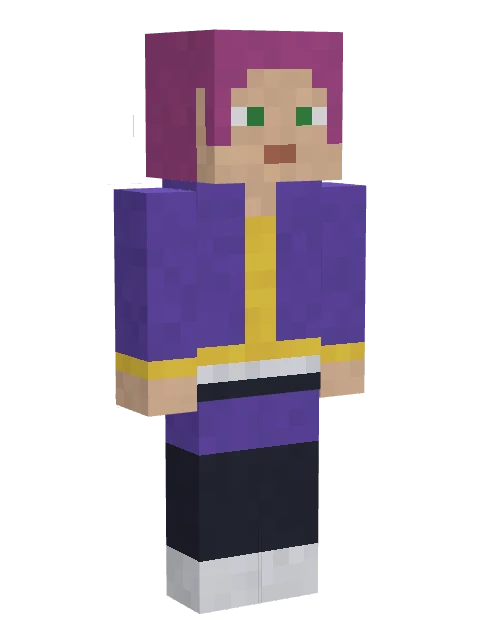
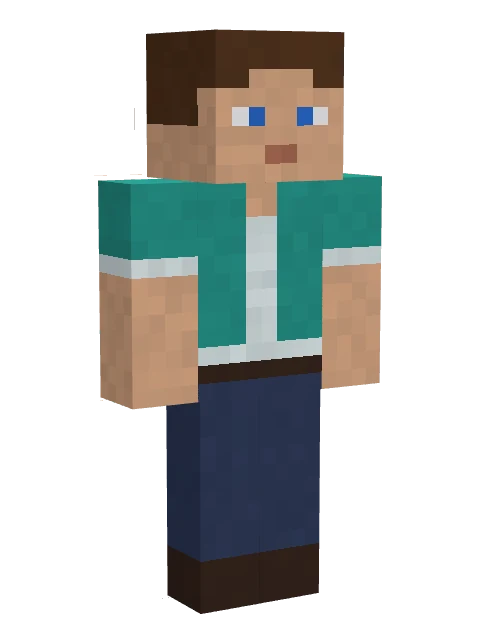
The two stock arm models
Official creator documentation defines only two built-in player models for skin packs: geometry.humanoid.custom (the classic "Steve" model) and geometry.humanoid.customSlim (the slim "Alex" model).
Notice that custom models are not officially supported in skins.json. Every 4D skin relies on undocumented behaviour found in real community packs, so a 4D skin may not show its extra parts on current versions of the game. If the game ignores custom geometry, the expected outcome is that it may fall back to the standard flat player shape, though this has not been confirmed in the game.
Both stock models share the same 17 standard player bones, including leftArm, rightArm, leftSleeve, rightSleeve, leftItem, and rightItem, but their arm measurements and pivot heights differ:
In geometry.humanoid.custom (classic), the arm cubes are 4×12×4 units. The leftArm and leftSleeve pivots sit at [5, 22, 0], while rightArm and rightSleeve sit at [-5, 22, 0]. The held-item bones (leftItem and rightItem) sit at y height 15 ([6, 15, 1] and [-6, 15, 1]).
In geometry.humanoid.customSlim (slim), the arm cubes are 3 wide instead of 4 (3×12×4). Because the shoulders are slightly lower, the arm pivots sit at y height 21.5, and the leftItem and rightItem bones sit at y height 14.5.
How classic and slim textures differ
On a standard 64×64 skin texture, the arms use box UV mapping starting at specific top-left corners: 40,16 for rightArm, 40,32 for rightSleeve, 32,48 for leftArm, and 48,48 for leftSleeve.
In box UV arithmetic, a cube of size [w, h, d] takes a rectangle of 2d + 2w by d + h texels. Because both arm types have a depth of 4 and a height of 12, every arm strip is 16 texels tall (4 + 12), but their horizontal widths differ:
A classic 4-wide arm (4×12×4) uses a 16×16 texel area (2×4 + 2×4 = 16 wide). A slim 3-wide arm (3×12×4) uses a narrower 14×16 texel strip (2×4 + 2×3 = 14 wide).
On a slim skin PNG, the unused 2-texel columns in the arm areas are left transparent. When you load a skin into the Quick 4D Maker or the 4D skin editor, the tool inspects those transparent pixels to automatically detect whether your PNG was painted for classic or slim arms.
Classic arm cube [4, 12, 4] -> Box UV width: 2(4) + 2(4) = 16 texels
Slim arm cube [3, 12, 4] -> Box UV width: 2(4) + 2(3) = 14 texels (2 columns left transparent)What "custom arms" means on 4D skins
A plain skin must pick either geometry.humanoid.custom or geometry.humanoid.customSlim in skins.json. A 4D skin, however, points to a custom geometry id defined inside geometry.json.
In a 4D skin, the arm width is whatever the custom geometry file says it is. Real packs may keep standard 4-wide classic arms or 3-wide slim arms on their leftArm and rightArm bones and attach extra 3D parts as child bones.
However, mob-shaped skins that drop the player bones entirely also exist in real packs, and custom geometry may use non-standard arm sizes. Because of this, our catalog's arm model filter has three values: classic, slim, and custom for any 4D skin whose arm geometry does not match the stock 4-wide or 3-wide player rig.
Choosing the arm model in our tools
When you build a 4D skin in the Quick 4D Maker or the 4D skin editor, your base rig must match your skin PNG, and in real packs any 4D parts attached as child bones to an arm are expected to follow that arm.
In the Quick 4D Maker, open the Skin tab. When you load a PNG via Choose skin image, Paste image, or drag-and-drop (or pick a built-in starter skin: Scout has classic arms, Nova has slim arms), the tool auto-detects the arm width from the transparent pixels. If the arms look wrong in the 3D preview, toggle the Arm model switch between Classic arms (4 px) and Slim arms (3 px).
In the 4D skin editor, open the 4D Skin menu (the person icon on phones) and choose either New 4D skin (classic arms) or New 4D skin (slim arms) to start with the 17 standard player bones at their exact classic or slim pivots. If you use Open a skin PNG, the editor detects the arm type from the image and asks you to confirm.
When adding bracelets or other arm parts, parent the part to the matching arm bone (leftArm or rightArm). In the Quick 4D Maker's Edit tab, set Attach to to left arm or right arm. In real packs, a child bone is set up to follow the bone it is parented to, so the part may swing with the arm during walk and attack animations and sits relative to that arm's pivot height (22 for classic, 21.5 for slim).
Symptoms of an arm mismatch and how to fix it
An arm mismatch happens when a slim texture is paired with classic 4-wide arm geometry, or a classic texture is paired with slim 3-wide arm geometry.
Slim PNG on a classic 4-wide rig: The 4-wide cube reads the full 16-texel UV width, including the 2 transparent columns meant to be unused. In the preview, the arms may look wrong and you may see transparent gaps where those unused columns are mapped onto the 4-wide cubes.
Classic PNG on a slim 3-wide rig: The 3-wide cube only reads a 14-texel strip across instead of the full 16-texel classic strip, so the arms may look wrong in the preview with 2 columns of painted pixels left unread.
How to fix it: In the Quick 4D Maker, go to the Skin tab and flip the Arm model switch to match the texture. In the 4D skin editor, re-import your texture with Open a skin PNG and confirm the matching arm type, or resize the leftArm, rightArm, leftSleeve, and rightSleeve cubes between 4 and 3 units wide and adjust their y pivots (22 vs 21.5) and item bone y heights (15 vs 14.5).
Common mistakes
- Adding an
arm_sizekey toskins.json: Keys likearm_sizedo not occur in official documentation or in any realskins.jsonwe surveyed; arm width is controlled entirely by the model id ingeometryor the cubes insidegeometry.json. - Attaching arm accessories to
bodyinstead ofleftArmorrightArm: In real packs a part is expected to follow the bone it is parented to, so a bracelet parented tobodymay stay with the torso instead of following the arms when they swing. - Saving a slim skin as a 24-bit PNG without transparency: Solid white or black fill in the unused slim arm columns disables automatic slim detection and renders as solid stripes if put on a classic rig; always save skins as 32-bit RGBA PNG.
- Forgetting
leftSleeveandrightSleevewhen editing arm geometry: If you change an arm cube in the 4D skin editor from 4-wide to 3-wide without resizing its sleeve cube, the outer layer overhangs or displays transparent gaps.
Questions and answers
Why does my skin have transparent vertical stripes on the arms?
Your skin texture was painted for slim 3-wide arms (14 texels wide in the UV layout), but the geometry is using classic 4-wide arm cubes (16 texels wide). Switch Arm model to Slim arms (3 px) in the Quick 4D Maker, or use the slim base rig in the 4D skin editor.
How does the Quick 4D Maker know if my PNG is classic or slim?
When you load a PNG, the tool checks the 2-texel columns in the arm UV areas that slim skins leave unused. If those pixels are transparent, it selects Slim arms (3 px); otherwise it selects Classic arms (4 px).
Can I use a legacy 64x32 skin with slim arms?
Legacy 64x32 textures were made before slim arms existed and only have classic 4-wide arm strips. When you load a 64x32 PNG into the Quick 4D Maker or 4D skin editor, it is converted to a 64x64 layout as a classic-arm skin.
Do custom arm widths in a 4D skin appear on every device?
This has not been confirmed in the game. Official documentation states that custom models cannot be added through the skin pack JSON, so a 4D skin may not show its extra parts on current versions or on every platform; if the game ignores the custom geometry, the expected outcome is the flat standard player shape.
 4D
 4D
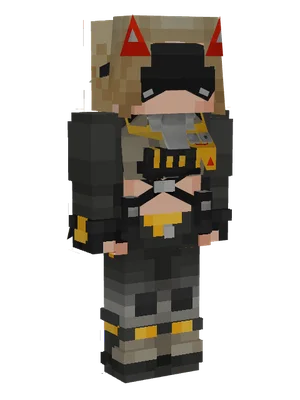 4D
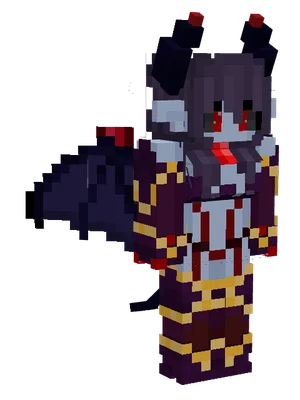 5D
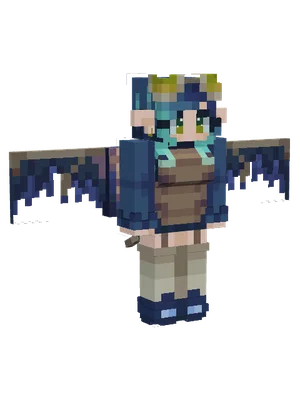 5D
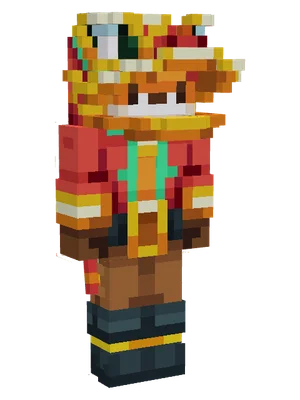 4D