
Reference for the 17 standard bones of the Minecraft Bedrock player model (geometry.humanoid.custom and geometry.humanoid.customSlim), including exact pivots, parent chains, and how to attach custom 4D parts.
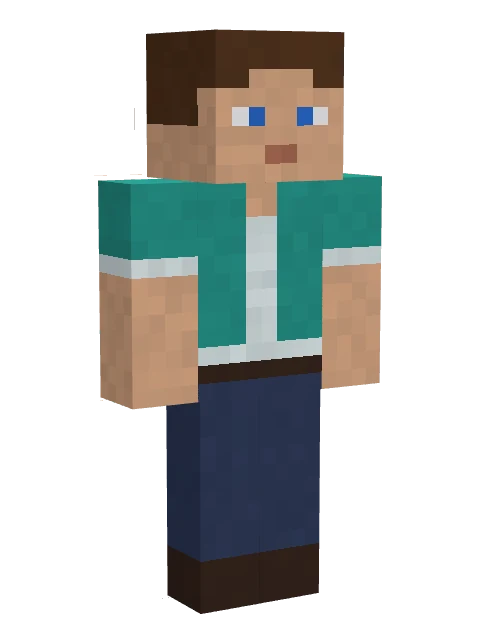
The 17 standard player bones and caveat
From official game data, the classic Bedrock player model (geometry.humanoid.custom on a 64x64 texture) is built from 17 named bones. You can inspect every bone, its parent, its pivot, and its default cube dimensions in the table below.
Before editing a rig, understand the official support limit: Microsoft's skin pack documentation says custom models cannot be added to skin packs through the skin pack JSON, and only documents geometry.humanoid.custom and geometry.humanoid.customSlim. Shipping a custom geometry.json file for a 4D skin is undocumented behaviour found in real community packs. Nothing on this site has been tested in the game, so a 4D skin may not show its extra parts on current versions and may fall back to the flat standard player shape.
The game's built-in player animations address bones in lower case (such as leftarm), so bone names are matched without regard to case. You can use the exact names from the table below (leftArm, rightLeg) or lower case.
Axes, units, and pivot points
In Bedrock geometry, 16 units equal one block, and a standard player stands 32 units tall. The origin [0, 0, 0] sits on the ground directly between the player's feet, with the +y axis pointing straight up.
The character faces -z (north in model space). Because you often look at the front of the character while modelling, pay attention to the X axis: the character's left side is toward +x (leftArm has its pivot at [5, 22, 0]) and its right side is toward -x (rightArm is at [-5, 22, 0]).
On each cube, origin is the corner with the smallest x, y, and z values, and size extends in the positive direction along all three axes. A bone's pivot is the 3D coordinate [x, y, z] around which that bone - and every child bone parented to it - rotates during animations.
{
  "format_version": "1.8.0",
  "geometry.example.rig": {
    "texturewidth": 64,
    "textureheight": 64,
    "bones": [
      { "name": "root", "pivot": [0, 0, 0] },
      { "name": "waist", "parent": "root", "pivot": [0, 12, 0] },
      {
        "name": "body",
        "parent": "waist",
        "pivot": [0, 24, 0],
        "cubes": [
          { "origin": [-4, 12, -2], "size": [8, 12, 4], "uv": [16, 16] }
        ]
      },
      {
        "name": "head",
        "parent": "body",
        "pivot": [0, 24, 0],
        "cubes": [
          { "origin": [-4, 24, -4], "size": [8, 8, 8], "uv": [0, 0] }
        ]
      },
      {
        "name": "leftLeg",
        "parent": "root",
        "pivot": [1.9, 12, 0],
        "cubes": [
          { "origin": [-0.1, 0, -2], "size": [4, 12, 4], "uv": [16, 48] }
        ]
      }
    ]
  }
}root -> waist -> body -> head) and how leftLeg parents directly to root.The bone hierarchy and why legs hang from root
Every bone moves and rotates with its parent. In the standard player rig, the upper torso forms a vertical chain: root ([0, 0, 0]) is at the bottom, waist ([0, 12, 0]) is parented to root, and body ([0, 24, 0]) is parented to waist. From body, the upper parts branch out: head ([0, 24, 0]), leftArm ([5, 22, 0]), and rightArm ([-5, 22, 0]).
Notice in the table below that leftLeg ([1.9, 12, 0]) and rightLeg ([-1.9, 12, 0]) are parented to root, not to body or waist. Because a part follows the bone it is parented to, hanging the legs directly from root means rotations on waist or body may move the upper body without rotating the legs along with it.
Outer-layer bones, attach points, and slim arms
Five bones carry the second skin layer: hat, jacket, leftSleeve, rightSleeve, and leftPants / rightPants. For example, hat is parented to head at pivot [0, 24, 0] and inflated by 0.5, while jacket is parented to body at [0, 24, 0]. Each sleeve and pant bone sits at the exact same pivot as its matching limb so both layers swing together.
Three bones are empty attachment points that hold no player cubes of their own: cape sits at [0, 24, 3] under body (at the top of the back), while leftItem ([6, 15, 1]) and rightItem ([-6, 15, 1]) mark where held items attach to the hands.
The slim variant (geometry.humanoid.customSlim) uses the exact same 17 bone names, but the arms are 3 units wide instead of 4. To keep the shoulders and hands aligned with the narrower cubes, the arm pivots move down by half a unit to y = 21.5 ([5, 21.5, 0] and [-5, 21.5, 0]), and the item bones move down to y = 14.5 ([6, 14.5, 1] and [-6, 14.5, 1]).
The practical rule for 4D skins and missing bones
If a 4D skin should still walk, swing its arms, look around, and hold items like a normal player, keep the standard bone names and add your custom parts as child bones. Because a child bone follows the bone it is parented to, you should parent ears or horns to head, wings or a tail to body, and bracelets to leftArm or rightArm.
Real packs also contain mob-shaped skins that drop the standard player bones and remap animations to a mob, or add extra bones named after a mob's skeleton (for example, wing bones for animation.phantom.move) because 5D animations target bones by name.
In the 4D skin editor, you can start with all 17 bones in place by choosing New 4D skin (classic arms) or (slim arms) from the 4D Skin menu, or start from our base templates. If you open a broken file or accidentally delete a core bone (root, waist, body, head, arms, or legs), both the editor's Skin validator and the standalone pack validator list missing core bones. Clicking Add missing player bones in the 4D skin editor restores any missing standard bones at their exact pivots.
{
  "name": "s4_cat_ears_1_l",
  "parent": "head",
  "pivot": [3, 32, 0],
  "rotation": [0, 0, 6],
  "cubes": [
    { "origin": [1.5, 31.5, -1], "size": [3, 2, 2], "uv": [65, 0] }
  ]
}head so it follows every head turn and pitch.body naming waist as its parent when waist was omitted), use Add missing player bones in the 4D skin editor to restore the full parent chain.The 17 bones of the standard player
| Bone | Parent | Pivot | Role |
|---|---|---|---|
root | - | [0, 0, 0] | Base of the whole model |
waist | root | [0, 12, 0] | Bends the upper body |
body | waist | [0, 24, 0] | Torso |
head | body | [0, 24, 0] | Head |
hat | head | [0, 24, 0] | Outer head layer |
jacket | body | [0, 24, 0] | Outer torso layer |
cape | body | [0, 24, 3] | Attach point of the cape |
leftArm | body | [5, 22, 0] | Left arm (slim: y 21.5) |
leftSleeve | leftArm | [5, 22, 0] | Outer layer of the left arm |
leftItem | leftArm | [6, 15, 1] | Where a held item attaches |
rightArm | body | [-5, 22, 0] | Right arm (slim: y 21.5) |
rightSleeve | rightArm | [-5, 22, 0] | Outer layer of the right arm |
rightItem | rightArm | [-6, 15, 1] | Where a held item attaches |
leftLeg | root | [1.9, 12, 0] | Left leg |
leftPants | leftLeg | [1.9, 12, 0] | Outer layer of the left leg |
rightLeg | root | [-1.9, 12, 0] | Right leg |
rightPants | rightLeg | [-1.9, 12, 0] | Outer layer of the right leg |
Common mistakes
- Parenting custom parts to the wrong bone or no bone at all. Because a part follows the bone it is parented to, an ear or hat part with no
parentwill not followhead; always set"parent": "head"for headgear or"parent": "body"for wings and tails. - Mixing up left (
+x) and right (-x) when looking at the front of the model. The character faces-z, soleftArmandleftLegsit on the+xside andrightArmandrightLegsit on the-xside. - Parenting
leftLegorrightLegtobodyorwaist. In the official rig, the legs parent directly torootso they are not under thewaistandbodychain. - Using classic arm pivots on a slim-armed model. For slim 3-wide arms, lower the arm and sleeve pivots from
y = 22toy = 21.5, and lowerleftItemandrightItemfromy = 15toy = 14.5.
Questions and answers
Does capitalization matter in bone names like leftArm?
No. Official game data shows that player animations address bones in lower case (such as leftarm), so the game matches bone names without regard to case.
What happens if my model is missing waist or root?
The Skin validator in the 4D skin editor and the pack validator will flag any missing core player bones (root, waist, body, head, arms, and legs). You can click Add missing player bones in the 4D skin editor's 4D Skin menu to add them back at their standard coordinates.
Why do cape, leftItem, and rightItem have no cubes?
They are empty attachment bones in the standard player rig. The game uses their pivot positions ([0, 24, 3] for cape, [6, 15, 1] for leftItem, and [-6, 15, 1] for rightItem) to know where to attach a cape or held items.
Does keeping all 17 standard bones make a 4D skin officially supported?
No. Microsoft's official documentation states that custom models cannot be added to skin packs, and nothing on this site has been tested inside the game, so a 4D skin may not show its extra parts on current versions.