
Use the 3D skin viewer to inspect custom models, capes, bones, and 5D animation remaps from any .mcpack, .zip, or loose geometry and texture files right on your device.
How to preview a pack or loose files
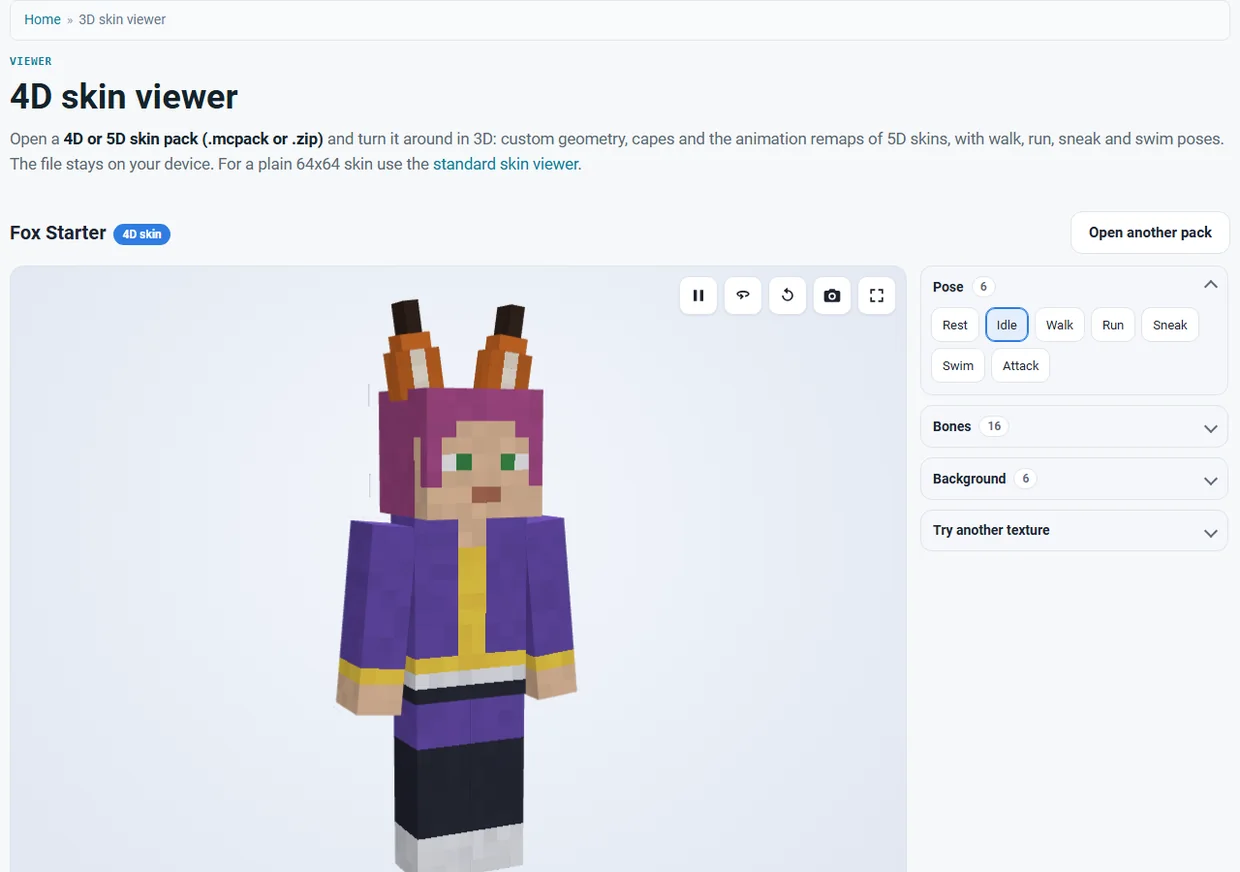
The 3D skin viewer lets you inspect 4D geometry and 5D animations in your browser before you import anything. Your files stay on your device. If you are browsing our catalog, every catalog skin page already has this viewer built in: use View in 3D to spin the model right on the page, or Inspect in the 3D viewer to open the full tool.
- Load your skin files into the 3D skin viewer by selecting a
.mcpackor.zipskin pack, or by selecting a loose geometry.jsonfile together with its texture.pngfile; you should see the model drawn on the canvas. - Pick a skin from the skin picker if your archive is a multi-skin pack or holds several packs in one archive; the canvas switches to that entry.
- Drag on the canvas to turn the model and change the background if you need better contrast against dark or bright textures.
- Switch between the movement poses (
idle,walk,run,sneak,swim, andattack) to see how the parts and any cape move with the body. - Test the 5D animation remaps if the skin defines an
animationsobject (such asanimation.player.move.arms.zombieonmove.armsoranimation.wolf.shakingonhumanoid_base_pose), which the viewer plays automatically using the game's stock animation definitions. - Open the bone list to show or hide individual bones (and hide the cape if one is attached), or use try another texture to test a different
.pngon the current geometry. - Read the Skin details panel to see the classification (3D, 4D, or 5D), geometry id and format, bone and cube counts, texture size, cape status, animation slots, and model height.
- Review the Pack check panel to spot file issues or any custom animation ids that the viewer cannot resolve.
- Use the transparent PNG snapshot button to save a clean picture of the current pose to your device.
What the 3D preview does and does not tell you
The 3D skin viewer shows what the files describe, not what a specific game version or platform accepts. The official documentation states that custom models cannot be added to skin packs through the skin pack JSON, and only documents localization_name, geometry (geometry.humanoid.custom or geometry.humanoid.customSlim), texture, and type. Because custom geometry ids, geometry.json, the animations object, and cape are undocumented behaviour that real packs rely on, a 4D or 5D skin may not show its extra parts on current versions of Minecraft. If the game ignores the custom geometry, the expected outcome is the flat standard player shape and possibly a wrong-looking texture.
Keep these viewer limits in mind while checking a skin. First, the viewer does not draw armour or held items, and its sneak and swim poses are approximations. Second, for 5D skins, animation controllers are not executed, and mob animations that depend on the mob's own state (rather than simple bone motion) mostly show a static pose in the viewer.
Unresolved animations and encrypted packs
If a 5D skin references custom animation ids (such as an animation defined in a separate companion resource pack), the viewer cannot play them and lists them as unresolved. Only the game's stock animation definitions are bundled into the preview.
Finally, encrypted packs are detected and refused. Some community packs are encrypted to look like Marketplace packs and contain a contents.json file alongside ciphertext skins.json, geometry.json, and .png files; no tool on this site can open or preview them. Everything in the site catalog is an open, unencrypted pack.
Common mistakes
- Uploading only a geometry
.jsonfile without its.pngtexture. When previewing loose files instead of a.mcpackor.zip, select both the geometry.jsonand the texture.pngtogether so the viewer can paint the model. - Thinking a 3D preview in the tool means the game accepts the custom parts. The viewer reads what the files describe, whereas whether current game versions show custom geometry from an imported pack has not been confirmed in the game.
- Expecting a custom animation from another add-on to move in the preview. The viewer only bundles the game's stock player and mob animation definitions and lists any custom animation id as unresolved.
- Trying to open a pack that has a
contents.jsonfile. That file marks an encrypted pack whose JSON and textures are ciphertext; use an unencrypted.mcpackor a skin from our catalog instead.
Questions and answers
Why do the extra wings or tails on my 5D skin stay still during the walk pose?
In real community packs, a mob animation moves bones by name, so the extra bones in the geometry must carry the exact bone names that the chosen mob animation addresses (for example, wing bones for animation.phantom.move). Also, mob animations that depend on the mob's own state mostly show a static pose in the 3D skin viewer.
Why does the viewer say an animation id is unresolved?
The viewer bundles the game's stock animations (like animation.player.move.arms.zombie or animation.wolf.shaking), so any custom animation id outside the stock game list cannot be played and is listed as unresolved. In real packs, custom animation definitions only appear in a separate resource pack shipped next to the skin pack.
Is a cape shown in the 3D skin viewer usable in Minecraft?
The viewer draws the 64x32 cape texture on the stock cape bone and lets it swing, but one community wiki claims capes in imported skin packs are not usable in the game, and we have not tested this. Many real 4D skins model a cloak directly into the custom geometry instead, though custom geometry itself may not show its extra parts on current versions.
Do I need to unzip a .mcpack or .zip before opening it in the viewer?
No, drop the .mcpack or .zip straight into the 3D skin viewer. Its reader even handles nested zips and archives that hold several packs at once.