
A .mcpack skin pack is simply a zip archive renamed so Minecraft Bedrock Edition recognizes it. Inside, a handful of text and image files link together to define your skin's textures, display names, and 3D model.
What is a .mcpack file?
A .mcpack file is an ordinary .zip archive with a different file extension. If you rename the end of the file from .mcpack to .zip, any standard file manager can open it and show you the files inside.
Before you inspect or build a 4D skin pack, remember one important caveat: Microsoft's official skin pack documentation states that custom models cannot be added through the skin pack JSON. Everything that makes a skin 4D or 5D - such as a geometry.json file, custom geometry IDs, a cape image, or an animations block - is undocumented behaviour that real community packs rely on. Whether the game shows these extra parts depends on your game version and platform, and a 4D skin may not show its extra parts on current versions (falling back to the flat standard player shape instead).
Every file at the pack root
In a valid skin pack, almost every file sits directly at the top level (the pack root), with only language files placed inside a subfolder. Here is what each file does:
manifest.json is the required ID card of the pack. It tells the game the pack's name, version numbers, and two unique identifiers (UUIDs) so the game knows it is a skin_pack. See our manifest.json reference guide for a full breakdown of its keys.
skins.json is the required roster that lists every skin in the pack. For each skin, it names the texture file, the geometry ID, and the language key, plus optional undocumented fields like cape or animations used in real 4D and 5D packs. You can read our skins.json reference guide for all field details.
geometry.json holds the 3D models for every 4D or 5D skin in the pack. This file is not part of official skin pack documentation, but real 4D packs place one geometry.json at the pack root to store all custom bones and cubes. Our geometry.json reference guide explains the coordinates, bones, and UV math inside this file.
Skin and cape .png files sit at the pack root next to the JSON files. Official documentation specifies that skin textures (such as fox.png) are read only from the root, and real packs that include a custom cape also place a 64x32 cape PNG (such as fox_cape.png) at the root.
texts/en_US.lang and texts/languages.json store the human-readable display names. texts/languages.json lists the supported language codes (such as ["en_US"]), while texts/en_US.lang maps internal code names to the display names of the pack and its skins, though several community packs ship with no texts folder at all.
s4maker.json appears only in packs created by our Quick 4D Maker. It stores your editable project data so you can reopen the pack in the tool later; the game has no use for it.
{
  "skins": [
    {
      "localization_name": "Fox",
      "geometry": "geometry.MyPack.Fox",
      "texture": "fox.png",
      "type": "free",
      "cape": "fox_cape.png"
    }
  ],
  "serialize_name": "MyPack",
  "localization_name": "MyPack"
}{
"format_version": "1.8.0",
"geometry.MyPack.Fox": {
"texturewidth": 128,
"textureheight": 128,
"bones": []
}
}How the files point to each other
skins.json is the hub that connects every other file in the pack. If a single name or spelling does not match across files, the skin can lose its texture, its display name, or its 3D parts.
The geometry key in skins.json must exactly match a model identifier in geometry.json. In the snippet above, skins.json asks for geometry.MyPack.Fox. In real packs, geometry.json defines a model with that exact name - either as a top-level key in the 1.8.0 layout, or inside the description.identifier field in the 1.12.0 layout - and our 3D skin viewer looks there to match them up. If you simply want a normal flat skin without custom 3D models, official documentation uses geometry.humanoid.custom (classic Steve arms) or geometry.humanoid.customSlim (slim Alex arms) with no geometry.json file needed.
The texture key (and optional cape key) in skins.json must match the exact .png file names at the pack root. When skins.json says "texture": "fox.png", there must be a 32-bit RGBA PNG file named fox.png in the main folder of the pack, not tucked inside a textures subfolder.
The localization_name keys link skins.json to lines inside texts/en_US.lang. At the root of skins.json, keep serialize_name and localization_name identical (for example, Ears_Starter). Then, inside texts/en_US.lang, the line skinpack.Ears_Starter=Ears Starter names the pack itself, and skin.Ears_Starter.Ears=Ears combines the pack name and the skin's localization_name (Ears) to give that skin its display name.
How to look inside a .mcpack without unzipping
You do not need a file manager or zip app to see what is inside a .mcpack. You can inspect the structure, models, and textures directly in your browser using our on-site tools (your file stays on your device and is never uploaded):
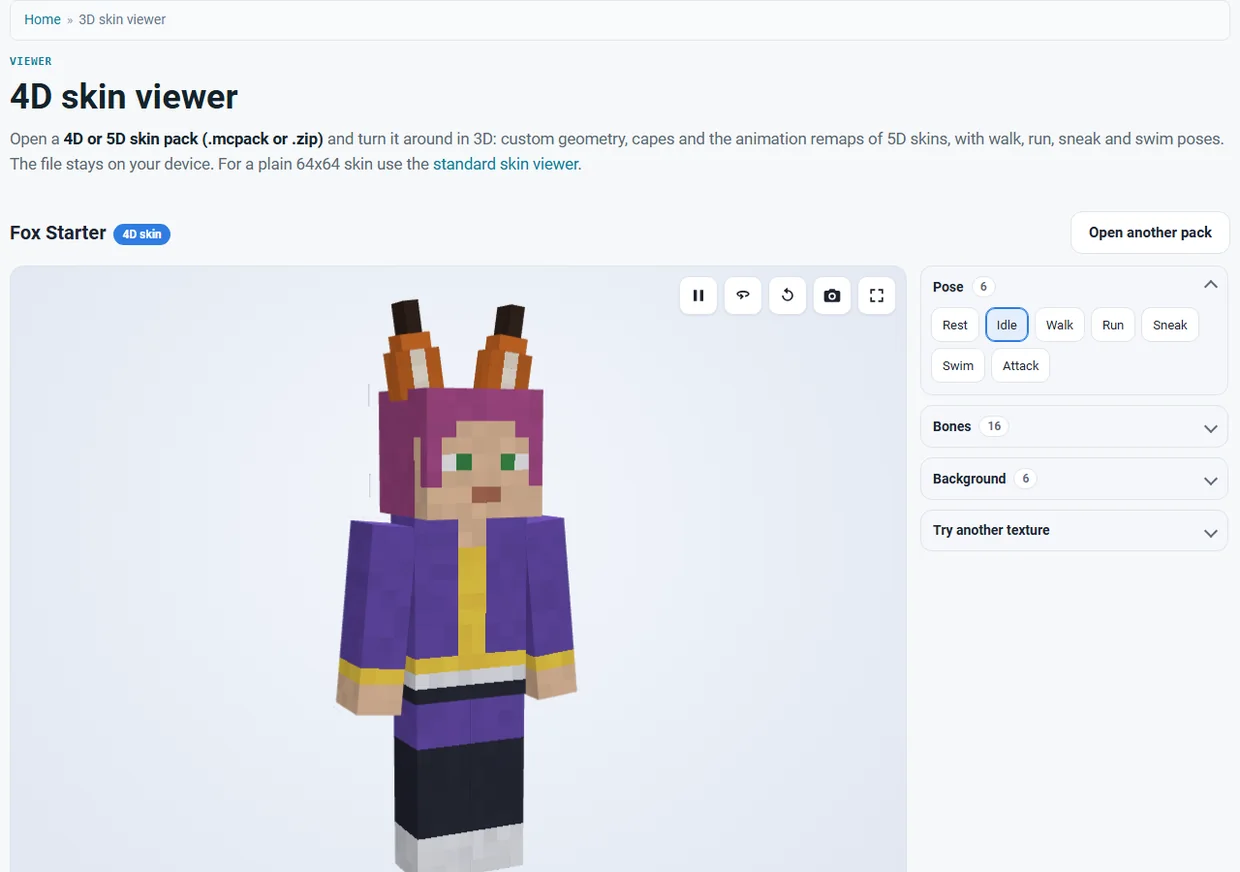
Use the 3D skin viewer to preview the model and check the Skin details panel. Drop your .mcpack or .zip into the 3D skin viewer. Alongside the interactive 3D preview and bone list, open the Skin details panel to see whether each skin is 3D, 4D, or 5D, its exact geometry ID and format version (1.8.0 or 1.12.0), bone and cube counts, texture size, cape file, animation slots, and model height.
Use the pack validator to view a complete skin table and catch broken links. Drop a .mcpack, .zip, or pack folder into the pack validator. It builds a skin table listing every skin's type, geometry ID, format, bones, cubes, texture, cape, and animation slots, while flagging missing files, mismatched geometry IDs, or unused PNGs and geometries.
Use the extract skin tool to pull individual files out of a pack. Load a .mcpack into the extract skin tool and pick any skin to download its standalone texture PNG, its cape PNG, its animations, or its single geometry file (in either 1.12.0 or legacy 1.8.0 layout) without manually unzipping or splitting a multi-skin geometry.json.
Common mistakes
- Putting PNG textures inside a subfolder instead of the pack root. Official documentation states that skin textures are used only at the pack root, so keep your
.pngfiles in the same main folder asskins.json. - Misspelling the geometry ID between
skins.jsonandgeometry.json. Even a small capitalization difference breaks the link; when a mismatch happens, our 3D skin viewer falls back to the standard player shape and shows a warning. - Zipping the outer folder instead of the files themselves. When you create a
.zipto rename to.mcpack,manifest.jsonandskins.jsonmust sit at the very top level of the archive, not one folder deep. - Giving the header and module the same UUID in
manifest.json. TheheaderUUID and themodulesUUID must be two different valid UUIDs; you can use our manifest fixer to generate fresh UUIDs automatically.
Questions and answers
Why doesn't a standard flat skin pack have a geometry.json file?
Standard flat skins use the game's built-in player models (geometry.humanoid.custom or geometry.humanoid.customSlim) directly in skins.json. A geometry.json file is an undocumented addition used by real community packs only when a skin needs custom 4D or 5D models.
If all the files inside my .mcpack link together properly, will my 4D skin show up in the game?
Not necessarily. Official skin pack documentation does not allow custom models in skin packs, so whether custom geometry from a .mcpack appears in-game depends on your game version and platform, and a 4D skin may not show its extra parts on current versions.
Can one .mcpack contain multiple 4D skins?
Yes. In a multi-skin pack, skins.json lists every skin in its skins array, each skin's .png texture sits at the pack root, and a single geometry.json file at the pack root holds all of their custom geometries together.
Why does the 3D skin viewer or extract skin tool refuse to open some skin packs?
If a skin pack is encrypted, its files cannot be read like a normal zip archive. All of our on-site tools detect encrypted packs and refuse them.