
 4D
Details
| Type | 4D skin (custom geometry) |
|---|---|
| Series | Minecraft |
| Character | Zombie |
| What makes it 4D | Extra cubes on player bones |
| Cubes | 19 |
| Bones | 30 |
| Detail level | Standard |
| Texture | 64 x 32 px |
| Arm model | Classic arms (4 px) |
| Height | 2.05 blocks |
| Cape | None |
| Geometry format | 1.8.0 (legacy layout) |
| Geometry name | geometry.Mobs.Zombie |
| Look | Minecraft mob · Steve-like (classic) |
| Theme | Horror |
| Main colours | Green, Cyan, Blue |
| From pack | Entites Skin Pack (one of 47 skins) |
| File | .mcpack skin pack with this one skin, 3 KB |
Classic Minecraft Zombie 4D Skin
A standard Minecraft zombie mob with green skin, a cyan shirt, and dark blue pants.
What makes it 4D
Classic Minecraft Zombie is a 4D skin for Minecraft Bedrock: the pack carries its own geometry, and it adds extra cubes on the standard player bones. The model is built from 19 cubes and 30 bones, where a plain skin uses one cube per body part.
How to install
- Tap Download .mcpack and wait for the file to finish.
- Open the file with Minecraft: on Android and iOS choose Open with Minecraft, on Windows double-click it. The game shows an import message at the top of the screen.
- Open the Dressing Room, go to Classic Skins and look for the pack under Owned Skins, then pick the skin and confirm. Imported packs are not listed under My Library (that is Marketplace purchases only).
Skin packs with custom geometry are imported on Android, iOS and Windows; consoles cannot open .mcpack files. Whether the extra parts show depends on the game version: if the game ignores the custom geometry you see the flat skin only. Step-by-step install guides: Android, iPhone and iPad, Windows and Xbox, PlayStation and Switch. Extra parts not showing? Read why your 4D skin shows as Steve, flat or invisible.
Change this skin
The download is an open skin pack, so you can add ears, tails or wings to it in the Quick 4D Maker, reshape the model and repaint the texture in the 4D skin editor or check the pack with the pack validator.
More from Minecraft
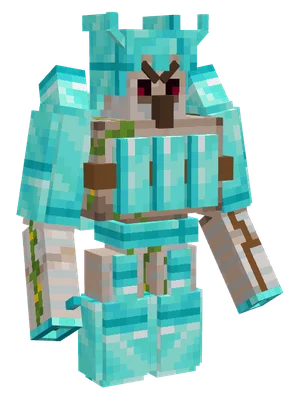 4DDiamond Armored Iron GolemMinecraftHelmetSnout & beak+3
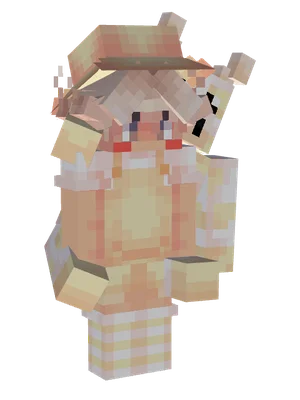 4DMoobloom Girl Carrying CowMinecraftAnimal earsHorns+3
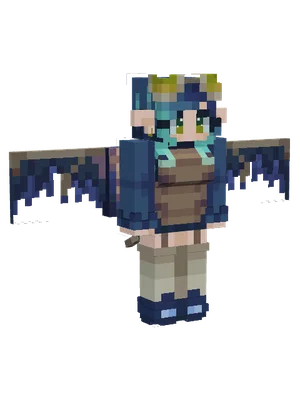 5DPhantom Winged GirlMinecraftAnimal earsTail+3
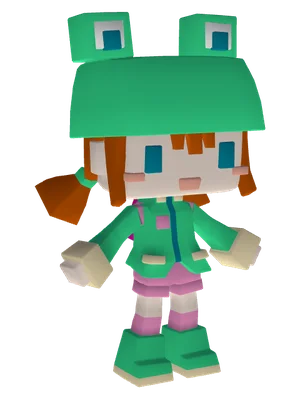 4DRanaMinecraftHat3D hair+3
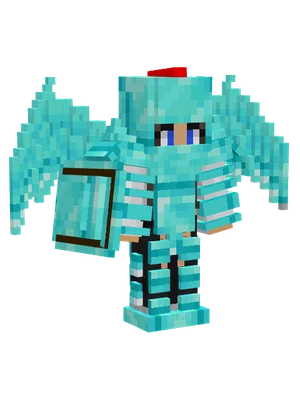 4DWinged Diamond Armor KnightMinecraftWingsHelmet+3
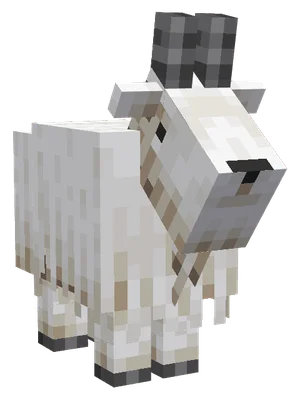 4DMinecraft GoatMinecraftAnimal earsHorns+2
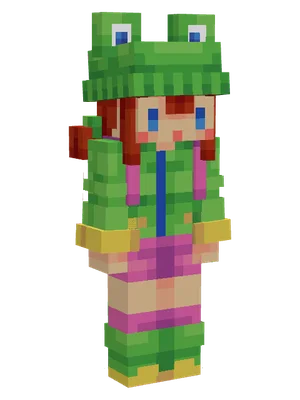 4DRana With Frog HatMinecraftHatPonytail & braids+2
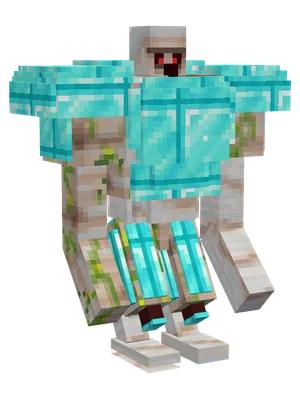 4DDiamond Armored Iron GolemMinecraftSnout & beak3D armor+1
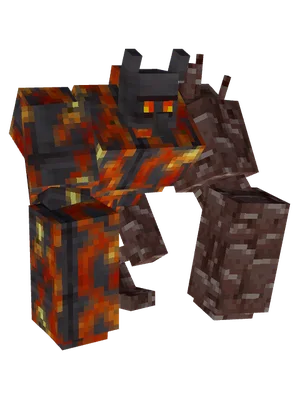 4DNetherite Lava GolemMinecraftHornsSnout & beak+1
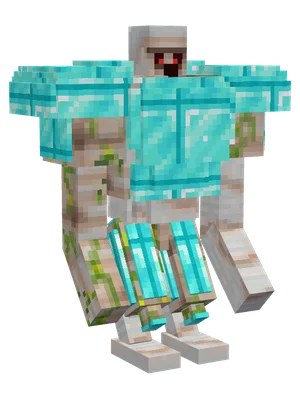 4DDiamond Armored Iron GolemMinecraft3D armorShoulder pads
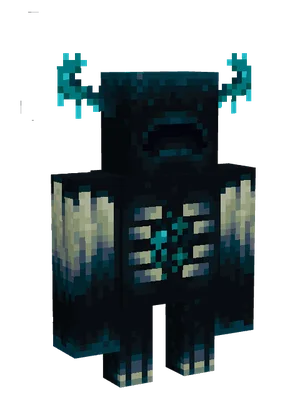 4DWardenMinecraftHornsBig head
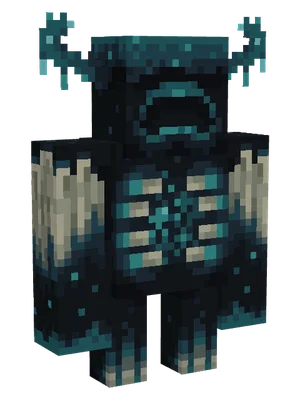 4DWardenMinecraftHornsAntennae