
Find out why a .mcpack skin pack fails to import into Minecraft Bedrock Edition and how to diagnose and repair the file using the on-site pack validator and manifest fixer.
How to diagnose a failed skin pack import
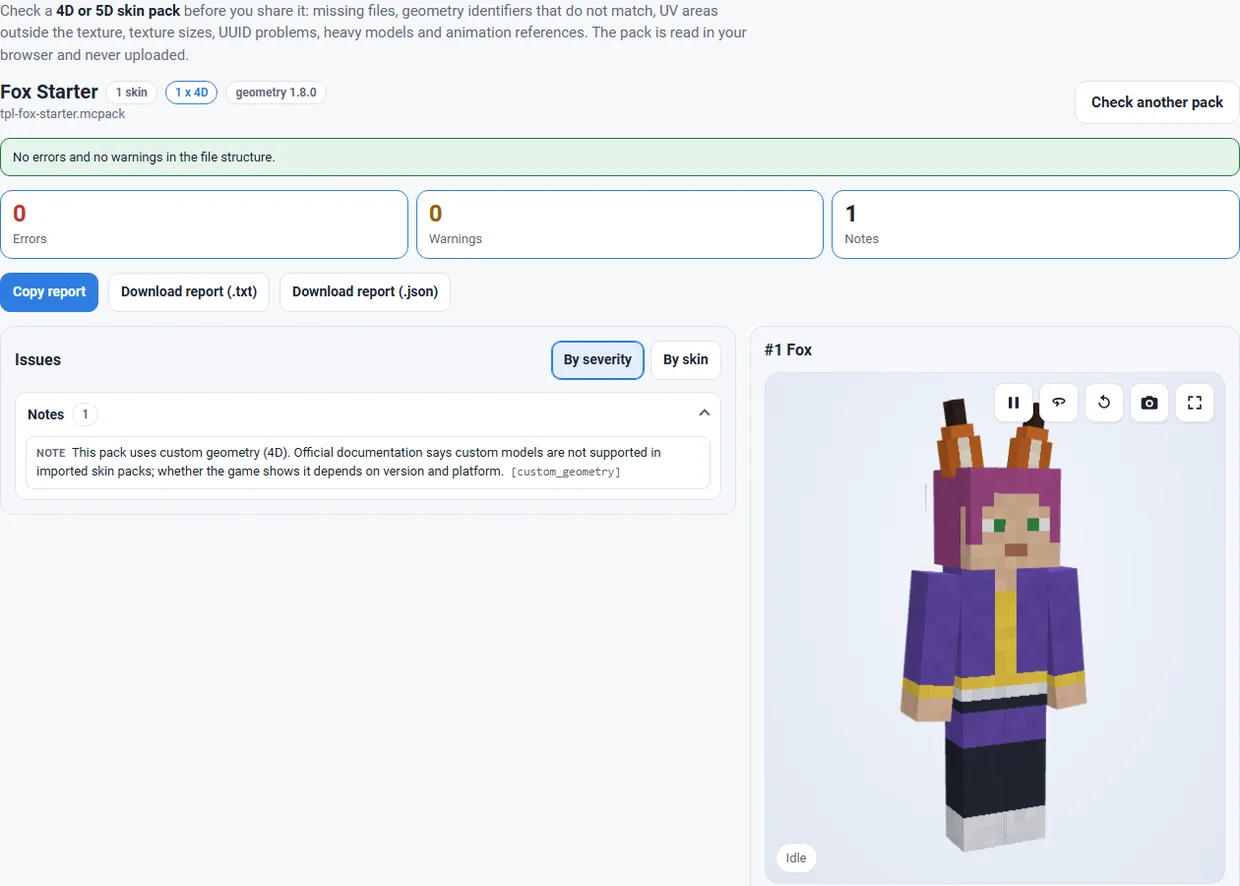
When Minecraft refuses to open a skin pack or shows an import failed message, the problem may be in the file name, the archive structure, or manifest.json. You can check the pack in your browser without uploading your files by running it through the pack validator.
Keep in mind that official documentation states custom models cannot be added to skin packs through the skin pack JSON. Even after you fix an import error, a 4D skin may not show its extra parts on current versions, and the game may fall back to the flat standard player shape.
- Check the file extension in your file manager before opening the game. Browsers and chat apps often rename downloads to
.zipor.mcpack.zip; if you see either, rename the file so it ends only in.mcpack, and do not unzip it. - Verify that the download finished completely. If your connection dropped, the archive cannot be read; download the
.mcpackagain and drop it into the pack validator to confirm it opens. - Drop the file into the pack validator to check if it is actually a skin pack. A valid skin pack requires
manifest.jsonandskins.jsonat the root; if both are missing ormodulesuses another type, you may have downloaded a resource pack or world instead. - Look for missing or broken JSON errors in the validator report. If
manifest.jsonis missing or contains invalid JSON syntax, the game cannot read the pack identity; use the manifest fixer or generate a blank skin-pack manifest to replace it. - Check the report for UUID errors in
manifest.json. Official rules require theheaderUUID and themodulesUUID to be valid and different from each other; if they match or are malformed, open the pack in the manifest fixer and generate fresh UUIDs. - Confirm the module type is set to skin_pack. In the validator's manifest check, make sure the entry inside
moduleshastypeset to"skin_pack"; if it is set to something else, the manifest fixer can repair it automatically. - Generate fresh UUIDs if the pack is rejected as a duplicate. Standard add-on behaviour (though not tested for skin packs) is that the game identifies a pack by its
uuidandversionand refuses to import a duplicate; use the manifest fixer to assign new UUIDs or raise the version by one. - Check the validator notes for an extra top-level folder inside the archive. All pack files belong at the root of the
.mcpack(or inside apersonafolder for special community packs, which are not installed by normal import); whether the game accepts a normal.mcpacktucked inside an extra subfolder has not been confirmed in the game, so re-zip the loose files at the root if needed. - Watch for an encrypted pack warning in the validator. Some community packs contain a
contents.jsonfile and encrypted ciphertext forskins.json,geometry.json, and PNG files meant for the game's premium cache folder; no tool on this site can open or fix encrypted packs, while every pack in our site catalog is open and unencrypted.
What a valid manifest.json looks like
Every normally imported skin pack needs a valid manifest.json at the root of the .mcpack archive. For skin packs, format_version may be 1 (while 2 is for resource packs, behavior packs, and world templates).
Both header and the single entry inside modules require a three-number version array such as [1, 0, 0] and their own separate uuid. If you run your pack through the manifest fixer, it rewrites only manifest.json into this exact shape while every other file in your pack keeps its exact bytes.
{
  "format_version": 1,
  "header": {
    "name": "Ears Starter",
    "description": "A classic skin with cat ears.",
    "uuid": "63a6812a-f79d-5f81-a5f7-030b15c9935d",
    "version": [1, 0, 0]
  },
  "modules": [
    {
      "type": "skin_pack",
      "uuid": "40b18f5e-b9c7-5cba-afa3-c5c03159661b",
      "version": [1, 0, 0]
    }
  ]
}Expected file layout at the pack root
A .mcpack is simply a .zip archive renamed to .mcpack where all core files sit directly at the pack root. Official documentation requires manifest.json, skins.json, and each skin texture .png at the root (textures are used only at the root), alongside optional display name files in texts/en_US.lang and texts/languages.json.
Real 4D and 5D packs in the wild also place a single geometry.json file and any 64x32 cape texture (.png) at the pack root. If the pack validator warns that your files are tucked inside an extra wrapper folder, or if you have a persona folder .zip meant for replacing the game's skin_packs/persona folder (an untested route that is not installed by normal import), you must place the required skin pack files at the root of a normal .mcpack before opening it with Minecraft.
Common mistakes
- Unzipping the downloaded pack before importing. Keep the archive intact and make sure its file name ends in
.mcpack, then open it directly with Minecraft. - Using the same UUID for both header and modules. The official manifest rules state the
headerUUID and themodulesUUID must be different; use the manifest fixer to generate two fresh UUIDs. - Trying to normally import a persona-folder zip. Many community 4D packs are distributed as a
.zipwhose top folder is namedpersona, which authors design to be copied over the game's internalskin_packs/personafolder rather than imported by opening the file. - Re-importing an edited pack without changing its UUID or version. Because players report the game refuses a pack whose
uuidandversionare already installed, run edited packs through the manifest fixer to assign fresh UUIDs or raise the version number.
Questions and answers
Why did my phone download a .zip or .mcpack.zip instead of a .mcpack?
Browsers and chat apps sometimes rename .mcpack files to .zip or .mcpack.zip during download. Use your file manager to rename the file back to .mcpack without unzipping it, then tap it or use Share / Open with to open it in Minecraft.
Why does the pack validator say my pack is encrypted?
Some community packs are encrypted to look like a purchased Marketplace pack and include a contents.json file alongside ciphertext for skins.json, geometry.json, and the PNG textures. These are meant to be dropped into the game's premium cache folder, and no tool on our site can open, preview, or fix them.
My pack imported after fixing the manifest, so why is my 4D skin flat in the game?
Official documentation says custom models cannot be added to skin packs through the skin pack JSON, so 4D features rely on undocumented behaviour. We have not tested packs inside the game, and a current game version may ignore custom geometry from a normally imported .mcpack and show the flat standard player shape instead.
How do I fix a duplicate pack error when testing changes to my skin pack?
Open the pack in the manifest fixer and choose the option to generate fresh UUIDs for header and modules, or raise the version array by one. Players report the game identifies a pack by its UUID and version (though this has not been confirmed in the game for skin packs), so new values may prevent a duplicate rejection.